This guide will walk you through CUSTOMIZING and LAUNCHING your brand template.
your new brand awaits
Most website DIY-ers make a big mistake by blindly diving into editing their template without doing any prep work first. I know you’re excited to play with the design and officially launch your brand, but doing this prep first will not only make it easier to customize your brand, but also make for a much more successful brand too.
PREP Work
step one
01

Using the link from your template-specific instructions document, download all of the files from the Google Drive folder into the SAME folder on your computer. Please make a copy of this folder to have a backup in case you need it. Don't change the file names yet. These files are linked for easy editing and changing the name will break the links.
Download your FILES
On your template-specific instructions, you will find links to the fonts used in your brand. Purchase or download and install the fonts that are used in your brand design. If you don't do this, the fonts won't appear in your Illustrator file when opened. Be sure to check the font licenses to make sure you purchase the correct font license.
Purchase FONT files


sign up for adobe illustrator
You will need to sign up for an Adobe Illustrator subscription to edit these files. If you do not already have access to Adobe Illustrator, you can sign up here. You get a 14-day free trial and you can cancel after you’ve finished editing your files if you’d like.
Sign up for ADOBE Illustrator subscription
Before you start editing your brand files, you want to establish your own brand style and color palette so you can easily customize the brand and make it your own. You can use my brand aesthetics Pinterest board and color palette board as a starting point to create your own brand inspiration board. This will help you define your brand style and color palette.
If you want to dive deeper into developing your brand style, grab the brand style workbook. I also recommend making sure you have your brand strategy nailed down before developing your brand style and visuals because it will be built on a stronger foundation if you have that established first.
Source brand STYLE and inspiration

There are some images included in the brand mockups that are free to use if you'd like. But you'll more than likely want to source some images to use with your mockups or other brand items. Now is a good time to source these images so they are ready to use as you customize your templates.
Once you have all of your images sourced, you want to go ahead and optimize them with tinyjpg.com. This way the file size is already small enough to be used in any application (including your website).
Prep brand IMAGES

Recommended stock photo resources
Now that you have all the elements ready, you can start putting it together. If you did the prep work from step one, this should be pretty easy to customize your template.
CUSTOMIZE your template
step two
02
Now you will customize each brand asset. Open the individual asset files and update the text and colors of each artboard separately. These are set up so that you have a black, white, and several brand color options for each logo file. Once you change the text of each logo you can edit the color to match your brand colors.
Once the file is saved it will automatically update in the brand board, brand guidelines, and mockup files.
Customize your brand ASSETS
To save and download your brand assets you will first create a brand files folder on your computer. I recommend setting this up so that there is a Print and Web folder and a JPG and PNG folder within each. You can also add a Vector folder within the Print folder.
In each of the files, you will outline all the text, group together the elements, and align them to the artboard both vertically and horizontally. Then you can save the files as JPG and PNG in each of the respective folders.
Download your ASSETS
Open the brand guidelines document and edit the pages for your brand. This document is also linked to the brand asset files so those should update automatically. You will only need to update the brand style, brand colors, and font hierarchy pages. Once those updates are made you can save this as a PDF to use as a guide for your brand visuals.
Customize the brand GUIDELINES
The hard work is done and now it’s time to get to the details and prep your brand for launch. Before you can launch your brand you want to take a little time looking at the tech details and making sure everything is squared away behind the scenes. Then you can hit publish and CELEBRATE!
LAUNCH your brand
step three
03
Grab the launch guide to help you check all the boxes and make sure everything is ready for launch. In that guide, you’ll find a launch checklist that will take you through all the nitty-gritty details to polish off your site plus templates for graphics and copy that will get you ready for the launch of your site.
Prep for LAUNCH

get the launch kit
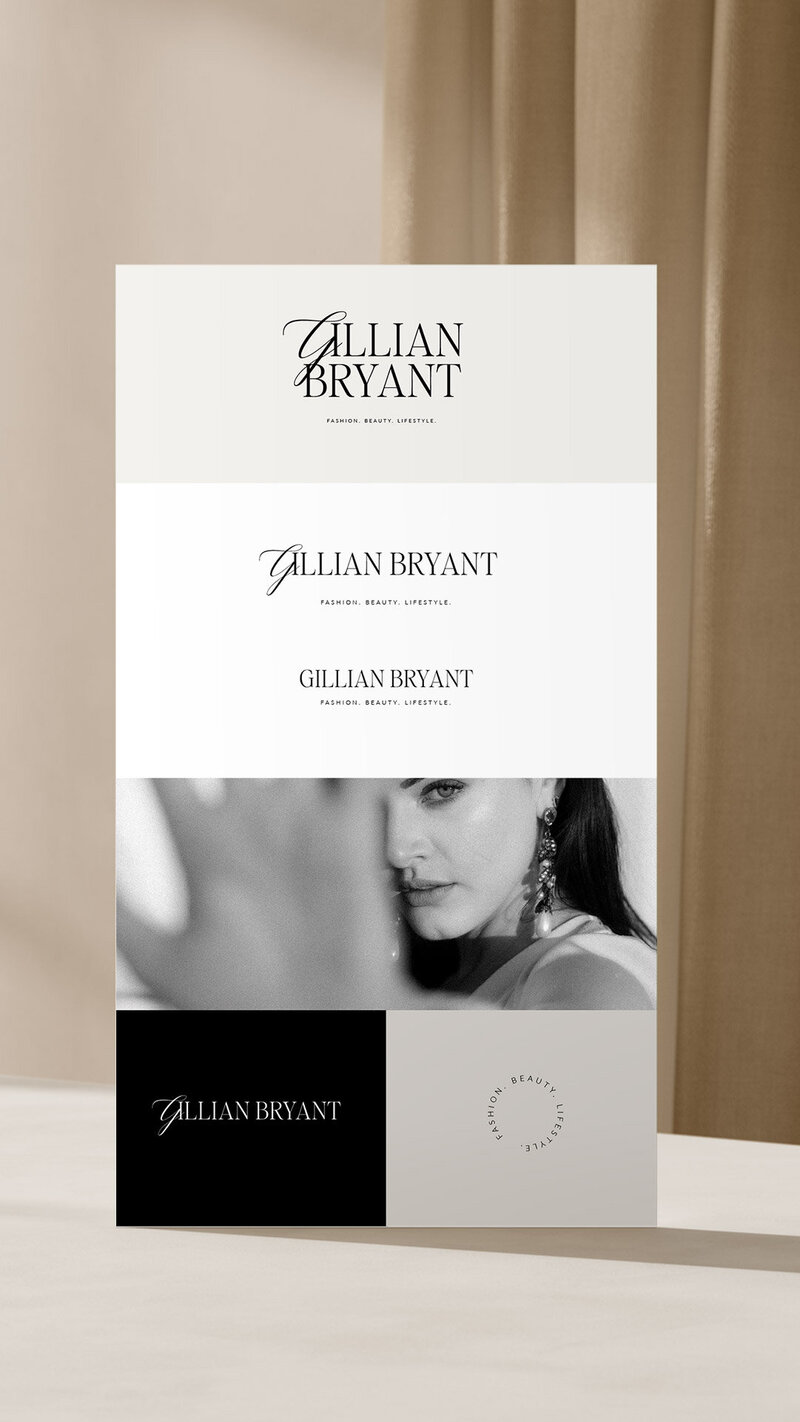
Now that you're ready to launch your brand, you can customize the included brand mockups to use for promoting your new brand. These are formatted as vertical files so they can easily be used in different applications. This document is also linked to the brand asset files so you will only need to update background colors and images. In some cases, you may have to manually update text on some of the mockups.
Customize the brand MOCKUPS

submit your brand to be featured
There's nothing I love more than celebrating the launch of your brand with you! Let me know you're launching so I can join in the celebration + submit your brand for the showcase.
Let's CELEBRATE
is your brand live?

I've provided some of the most basic and helpful tutorials here, but I know there is always something else that comes up. Showit has great support that can help with anything, and I am always happy to help when I can too.